Clinical Preference Tool
Student Guide
How to browse clinical bundles and make your selection.
Updated for Fall 2026Before You Begin
Selecting Your Clinical Bundle
Visit the Clinical Preferences page on the nursing portal. Log in with your NYU credentials if prompted.
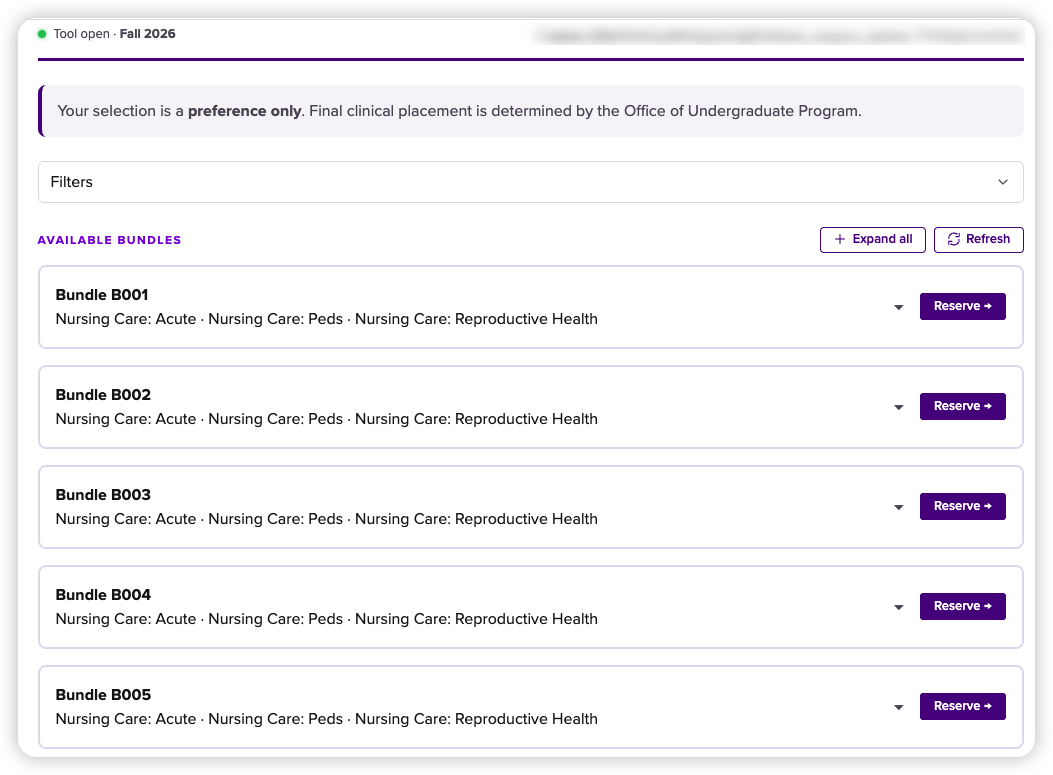
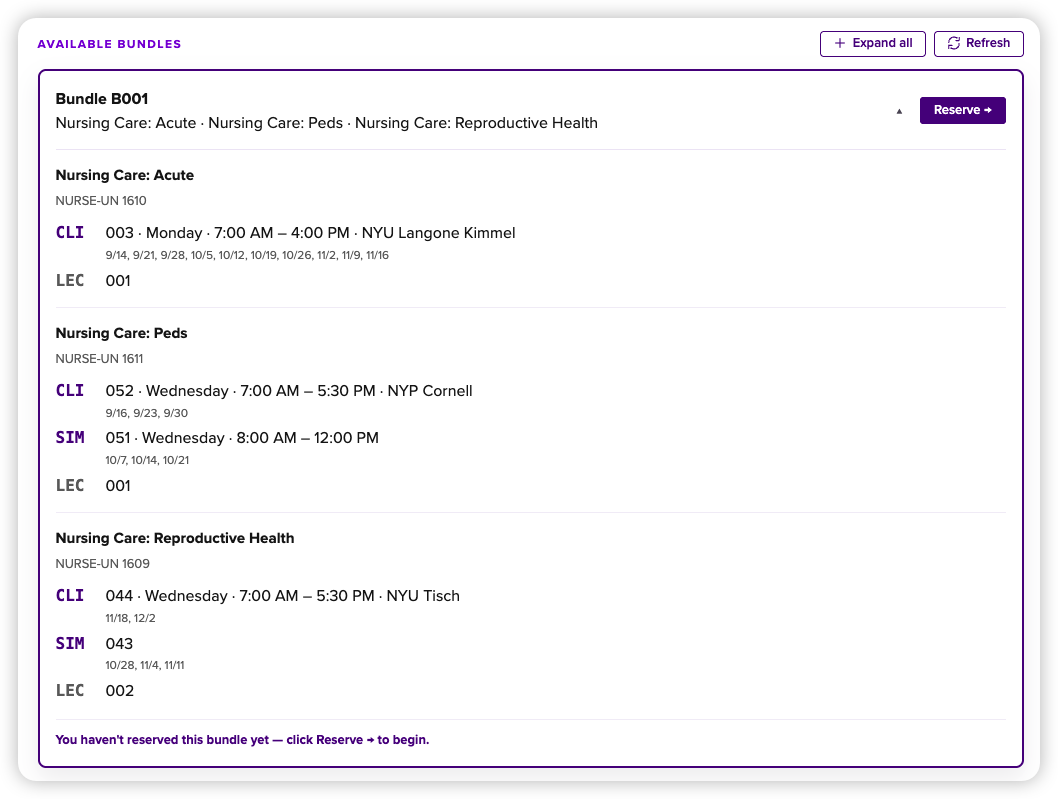
Click any bundle card to expand it and see full course and schedule details. Use Expand all to open all bundles at once.
Spots can change quickly. Use Refresh to check the latest availability.
Each course in a bundle shows its schedule using these labels:
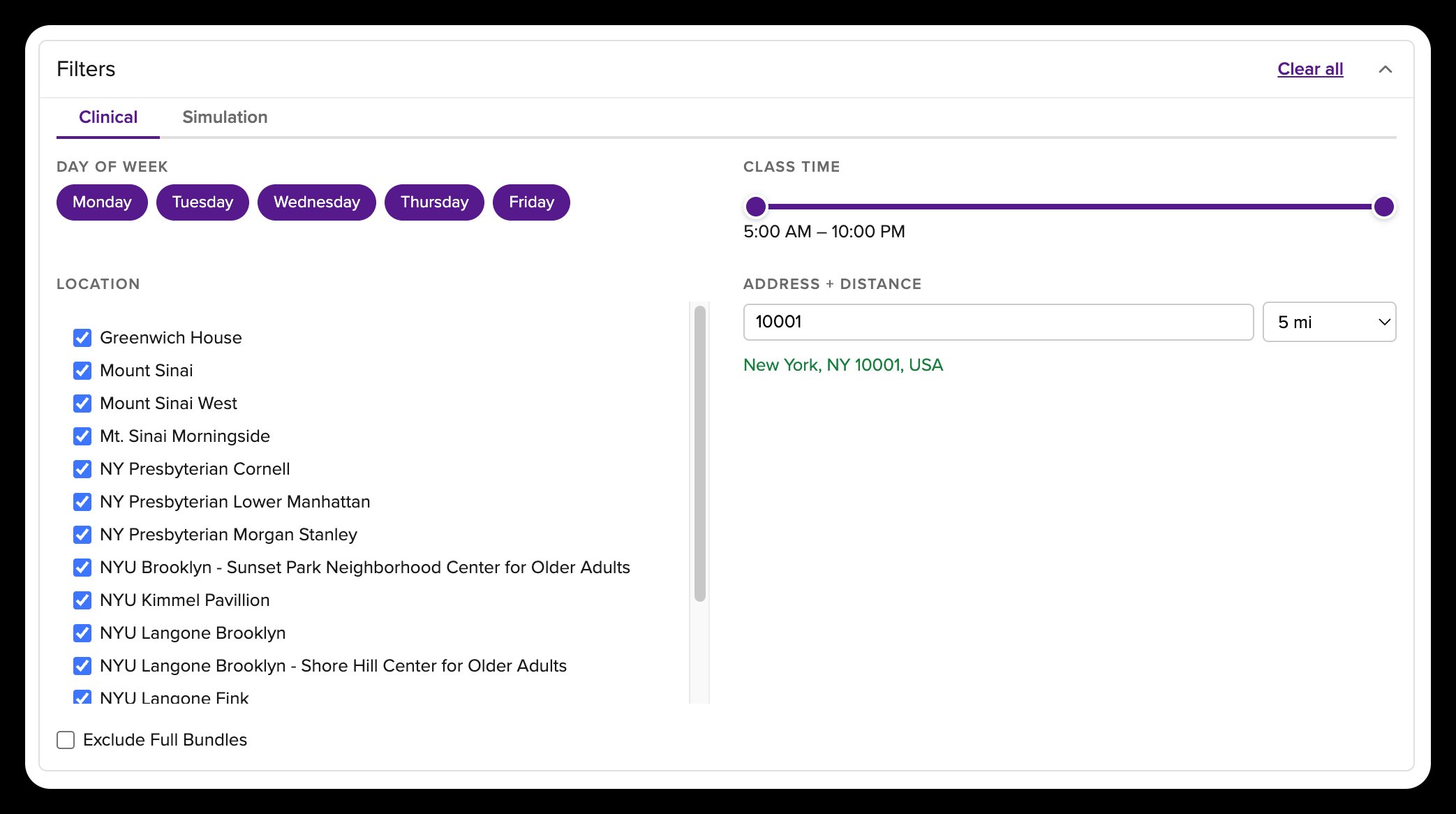
Click Filters to open the filter panel. Clinical and Simulation filters are on separate tabs.
- Day of Week Select the days you prefer for clinical or simulation.
- Class Time Drag the slider to set a time range. A class must start and end within that range.
- Location Select one or more clinical sites. Leave all sites unchecked to include every location.
- Address + Distance On the Clinical tab, enter a zip code or address and choose a radius to find bundles near you.
- Exclude Full Bundles Hide bundles that have no spots remaining.
All filters work together — a bundle must match every active filter to appear. Use Clear all to reset.
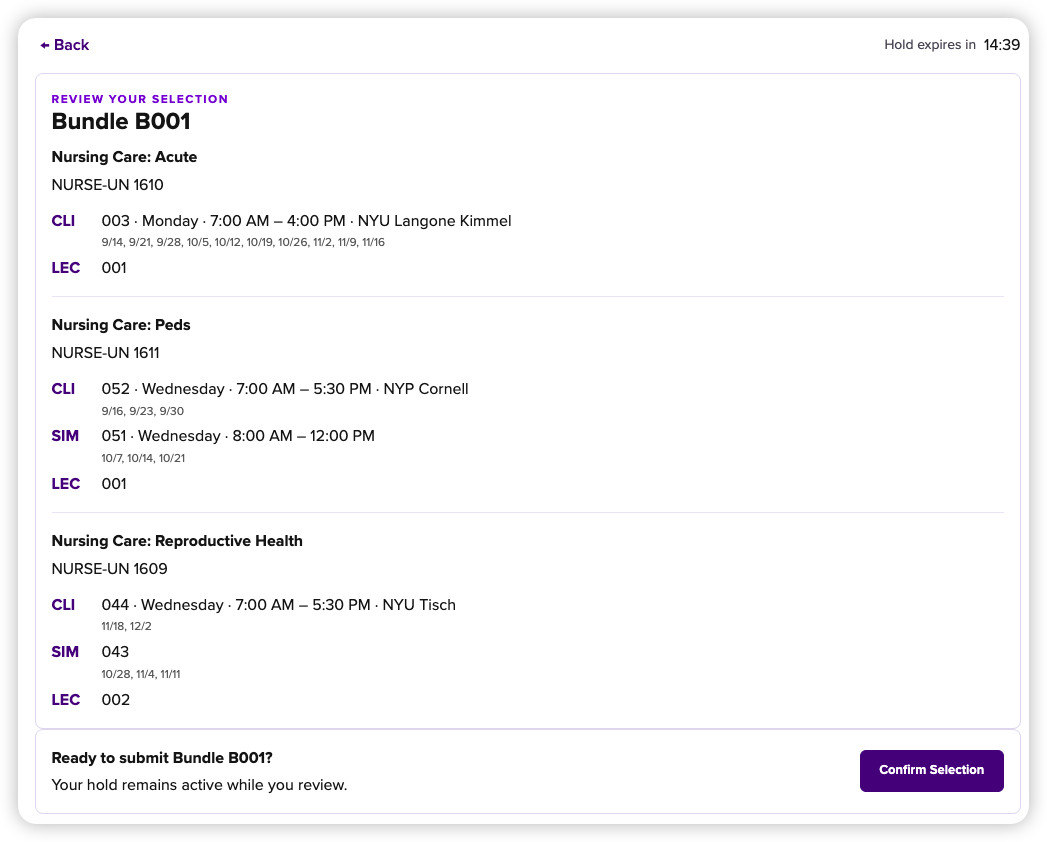
This places a 15-minute hold on the bundle. The timer appears in the top right corner. Your spot is not confirmed yet, but other students cannot claim it while your hold is active. Review the full schedule details on this page before confirming.
If you click Back, your hold stays active and the timer keeps running. Click Your hold on the bundle list to return to the review page.
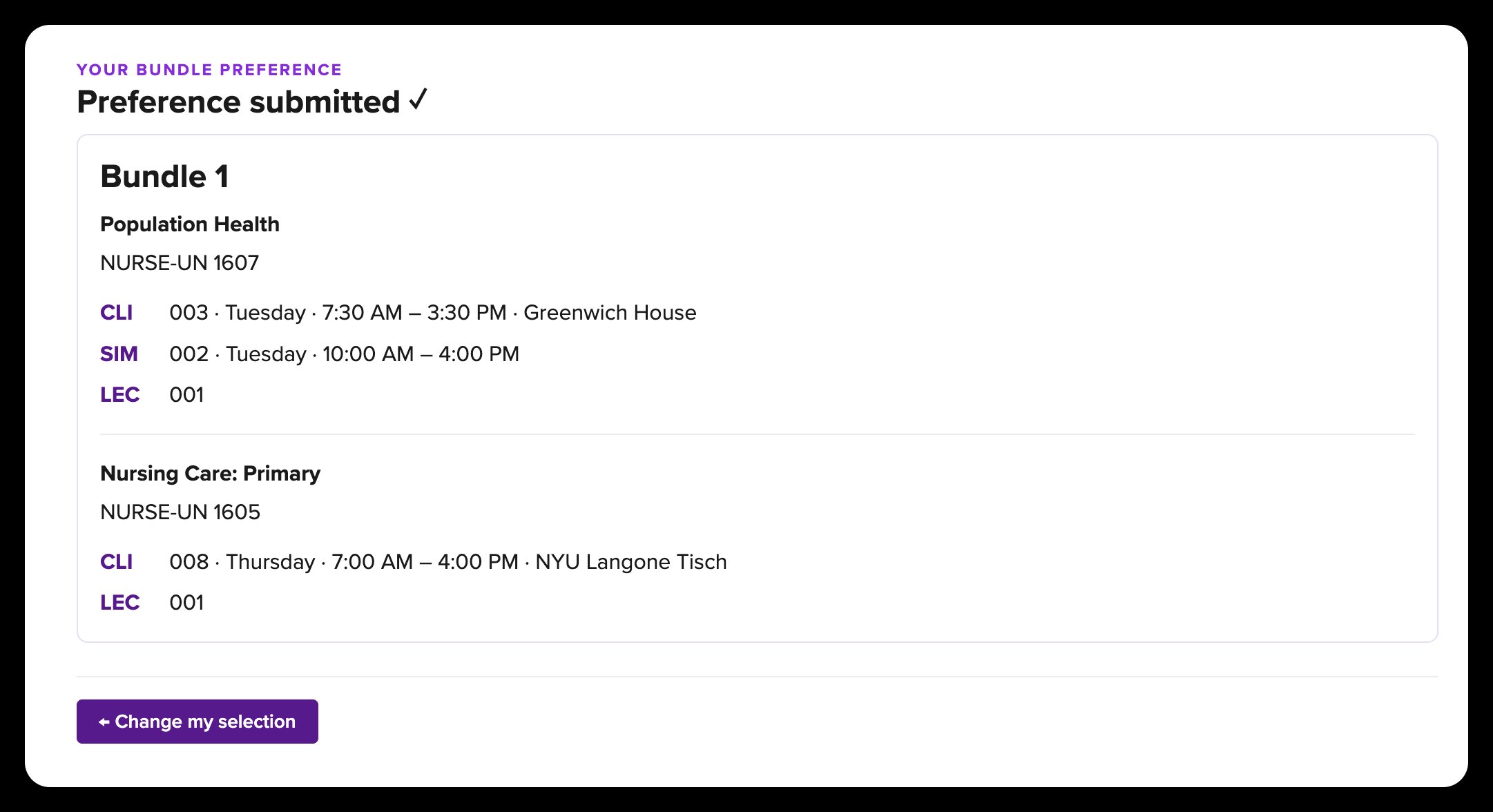
Your preference is submitted and you will receive a confirmation email. The confirmed screen is the best place to check that your selection was saved. The email is an extra confirmation.
The confirmed view shows your selected bundle details and a Change my selection button if you need to update your choice later.
Changing Your Selection
You can change your selection at any time while the tool is open — as long as there is space in another bundle.
A message explains that your current spot will stay confirmed while you choose. Click Continue to return to the bundle list. Your current bundle is marked.
Find the bundle you prefer, click Reserve, and review its details. Your old selection is still confirmed at this point.
Click Confirm Selection. The tool shows a final Replace your current selection? message. Check both bundle names, then click Confirm. Your old selection is replaced only after this final step.
Frequently Asked Questions
If the page says "No bundles match your current filters," click Clear filters. If it says no clinical bundles are available for your sequence, your sequence may not be open or may not have bundles for this term. Contact the Office of Undergraduate Program at nursing.undergraduate@nyu.edu.
You are returned to the bundle list automatically. If the bundle still has spots available, you can reserve it again. If someone else confirmed it in the meantime, you will need to choose a different bundle.
You cannot reserve a full bundle. Use Exclude Full Bundles to hide full bundles. You can also check back and click Refresh to see if a spot opens. If you have concerns about your options, contact the Office of Undergraduate Program at nursing.undergraduate@nyu.edu.
If your session expires while the page is open, you may see a "Your session has expired" message. Refresh your browser and log in again. Any confirmed selection you had is safe — session expiry does not affect saved data.
Check your spam or junk folder. Emails are sent to your NYU address. If you still cannot find it, log back into the tool — your confirmed bundle will be shown on the main page if the selection was recorded. If you see your bundle but have no email, contact nursing.undergraduate@nyu.edu.
Try refreshing the page. If the issue continues, try a different browser or clear your browser cache. If it persists, contact nursing.undergraduate@nyu.edu.